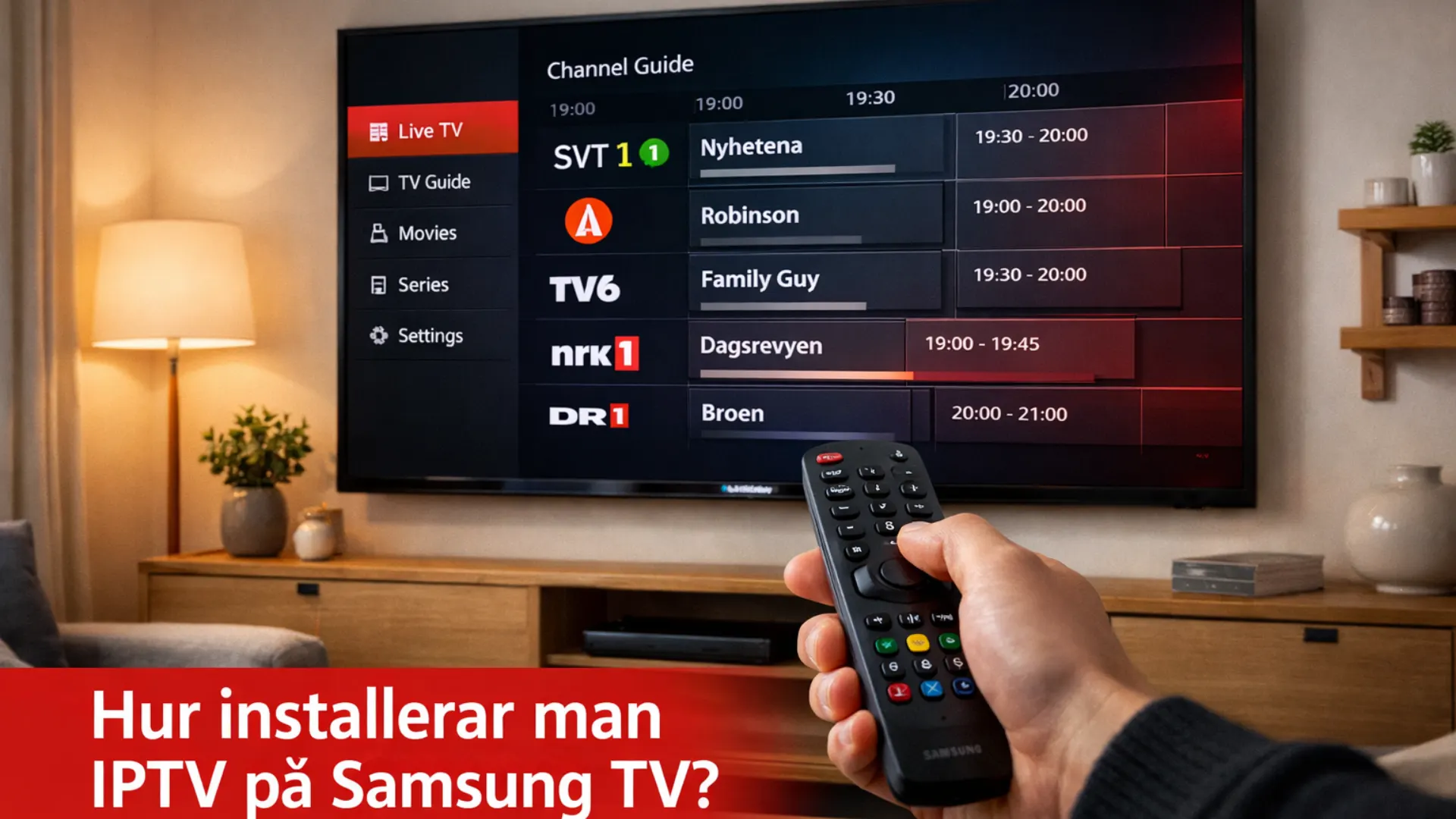
How to Install IPTV on Samsung TV — Step-by-Step Guide 2026
Install IPTV on Samsung TV in 10 minutes with Smart IPTV, Hot Player or IPTV Smarters. Free support and 24h trial with no credit card from SveaStream.
Samsung Smart TV is one of the most popular ways to watch IPTV. The screen is large, the remote works out of the box and you do not need any extra equipment. But the process is not entirely obvious the first time round — where do you find the app, what is a MAC address and how do you actually activate everything?
This guide walks you through it step by step. And if anything does not work, SveaStream will help you via WhatsApp until it is sorted.
What do you need to get IPTV on Samsung TV?
Three things: a Samsung Smart TV with an internet connection, an IPTV subscription with login credentials and an app installed on the TV.
That is it. No engineer visit, no extra cables, no in-home installation.
One thing worth knowing: Samsung TVs run the Tizen operating system, which does not allow you to install APK files directly like on Android. That means you cannot sideload apps freely — you need to use Samsung Smart Hub and only install apps that are available there. It narrows the choice slightly, but the apps that are available work well.
To watch in 4K you need at least 25 Mbps. For Full HD, 20 Mbps is enough and for HD, 10 Mbps will do. Most broadband connections handle this without any issues.
Does Samsung have an IPTV app?
Samsung does not have its own IPTV app. However, Smart Hub supports third-party apps built specifically for IPTV streaming. There are three apps that work well with SveaStream on Samsung TV.
Which app should I use for IPTV on Samsung TV?
Smart IPTV (SIPTV)
The most tried-and-tested app for Samsung TV. Simple to install, stable and works well with the remote. You activate it via your browser at siptv.eu, where you enter your TV's MAC address and paste your IPTV URL. A solid first choice for most people.
IPTV Smarters Pro
More features than Smart IPTV — better VOD browsing, a built-in EPG guide and a polished interface. You log in with your username and password directly in the app without needing to visit a website. A good pick if you want more control.
Hot Player
The most modern option right now. Fast channel switching, a clean interface and strong 4K support. Works particularly well on newer Samsung models from 2020 onwards. Worth trying if you are not satisfied with the other two.
All three work with SveaStream. We recommend Smart IPTV for beginners and Hot Player for newer TV models.
How do I download an app on Samsung TV?
- Press Home on your remote control
- Navigate to Apps
- Press the search icon in the top right corner
- Type the app name — "Smart IPTV", "IPTV Smarters" or "Hot Player"
- Select the app from the results
- Press Install
It takes roughly one minute. Once the installation is complete, you will find the app in your app list.
How do I get IPTV on my Samsung Smart TV?
Once the app is installed, the next step is to connect it to your IPTV service. The process differs slightly depending on which app you chose.
With Smart IPTV (SIPTV)
Open the app on your TV. On the home screen you will see a MAC address — a unique code for your TV that looks something like this: A1:B2:C3:D4:E5:F6. Make a note of it.
Then go to siptv.eu on your computer or phone. Enter the MAC address and paste the URL you received from SveaStream. Save. Restart the app on your TV — the channels will load automatically.
With IPTV Smarters Pro
Open the app and select "Login with Xtream Codes API". Enter the URL, username and password you received from SveaStream. Press login. Done.
With Hot Player
Open the app and select "Add playlist". Paste your M3U URL from SveaStream. The app will load the channels straight away.
SveaStream always sends clear instructions alongside the login credentials. If anything is unclear — contact us on WhatsApp and we will sort it out in real time.
Want to try IPTV on your Samsung TV?
Try SveaStream free for 24 hours — no credit card required.
Start your free trial nowHow do you activate IPTV?
Activating IPTV means linking your subscription to the app. You need the details you received when you ordered — a URL, username and password, or an M3U link depending on the app.
With SveaStream, you get your credentials within 2 minutes of contacting us. We send them directly via WhatsApp or email together with a brief explanation of how to enter them in the app you have chosen.
What is the best app for watching IPTV on Samsung TV?
There is no universal answer — it depends on your TV model and what matters most to you.
Smart IPTV is the safest bet for older Samsung models and for anyone who has never done this before. The browser-based activation takes a couple of minutes but is straightforward.
Hot Player is the best choice for newer models. Faster, sleeker and easier to log in.
IPTV Smarters Pro is ideal if you watch a lot of films and series via VOD and want a proper programme guide.
If you are unsure — go with Smart IPTV. You can always switch apps later without losing your subscription.
Can I install IPTV myself?
Yes. Most people manage it in 5 to 10 minutes without any help. But it is common to get stuck the first time — it usually comes down to the MAC address being entered incorrectly, the URL missing the right prefix or the app needing a restart after activation.
SveaStream offers a free installation guide via WhatsApp for all customers. We sit with you in real time until everything is working. It is not an extra service — it is included.
Can I get IPTV on my TV if it is not a Smart TV?
If you have an older TV without Smart Hub, you can still watch IPTV. You just need an external device connected via HDMI:
Amazon Firestick is the simplest option. It costs around £35, plugs directly into the HDMI port and runs Android — which gives you access to more apps than Samsung Tizen, including TiviMate, one of the best IPTV apps available.
Android TV box works in the same way but is slightly more powerful. A good choice if you already have a large TV you are happy with and do not want to replace it.
MAG box is an option for those who prefer a dedicated IPTV device with built-in support and no extra configuration.
All of them work with SveaStream.
Common problems and how to fix them
The app opens but no channels appear
Check that the URL has been entered correctly without any extra spaces. Restart the app and wait 30 seconds for the channels to load.
The MAC address is not accepted on siptv.eu
Make sure you type the address exactly as it appears on screen, including the colons. Some TV models display the address with hyphens instead.
Channels are buffering or freezing
Check your internet speed. Try connecting the TV via an ethernet cable instead of Wi-Fi if possible. SveaStream includes Anti-Freeze 9.8 technology that eliminates most buffering issues — contact support if the problem continues.
The app is not in Smart Hub
Some Samsung models have regional restrictions in the App Store. Change the region in your TV's settings to the United Kingdom if it is not already set.
Try SveaStream free on your Samsung TV
Before you commit, you can test it for 24 hours with no credit card. Full access to 61,000+ live channels and 180,000+ films and series in HD and 4K. Get in touch via WhatsApp or email and we will activate your trial within 2 minutes and walk you through the installation if you need it.
Ready to try it?
61,000+ channels in HD and 4K. Free for 24 hours, no credit card needed.
Try SveaStream freeSveaStream Editorial
Official sourceOfficial content from SveaStream — the leading Nordic IPTV service with 61,000+ channels in HD and 4K.